
“Measure Slope” is a new feature in Trimble Connect for Windows and 3D Viewer that allows users to measure the slope on 3D models by simply selecting two points or by using a perpendicular constraint.
This new functionality allows for quick and easy measurement of slopes in your 3D models, and these measurements can be saved in views like other measurements. You can find the slope measurement tool under the "Measurement options" and then select "Slope measure".
Accessing Slope Measurement:
- Click on the "Measurement options" icon.
- From the dropdown menu, select "Slope measure".
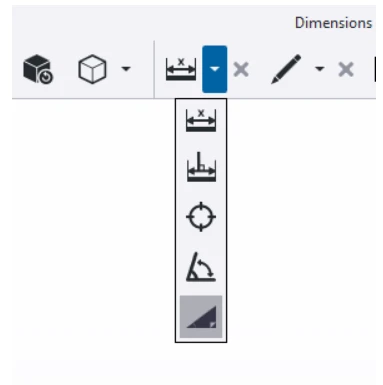
Perpendicular Snap Options:
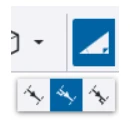
There are perpendicular snap options to refine your measurements when measuring from or to a line:
- None: No perpendicular snap.
- Perpendicular at start: The measurement will be perpendicular to the starting line.
- Perpendicular at end: The measurement will be perpendicular to the ending line.
Vertical and horizontal components option:
Click the H/V button to toggle on and off the vertical and horizontal distance components:
Slope measurement unit settings:
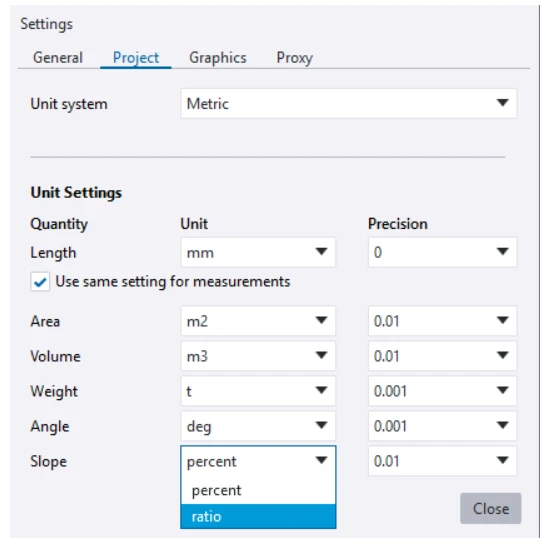
You can change the Slope measurement unit in the Settings panel. The slope can be displayed either as percent or as ratio.
How to Measure a Slope:
- Select slope measure from the measurement options
- Select your desired perpendicular snap option (e.g., Perpendicular at start, Perpendicular at end, None).
- Click to define your starting point or line in the 3D model.
- Click to define your ending point or line in the 3D model.
- The slope measurement will be displayed.
- Click the H/V button to toggle on or off the horizontal and vertical measurement components
- Optionally, you can use the Settings panel to change the slope measurement unit (percentage or ratio)
Comments
0 comments
Please sign in to leave a comment.