
In this guide, we will explain the procedure to obtain an educational license for Tekla Structural Designer, so that you can participate in any training or train yourself independently. Let’s get started.
Step 1 - Trimble Educational Page
To begin our process, we must go to the following link Tekla for Education Tekla Structural Design Suite | Trimble Downloads. This will take us to Trimble’s educational page, where we will see a brief guide on how to learn.
Step 2 - Registering for Trimble Identity
As shown in the previous image, we will proceed to create a Trimble Identity account, which is completely free. You can start this process by clicking here.
Or you can also do it by accessing the following link Trimble Identity; the following form will appear.
Here we must select the "New user? Create a Trimble ID" option.
Here we must select our region, and it will allow us to access a new form.
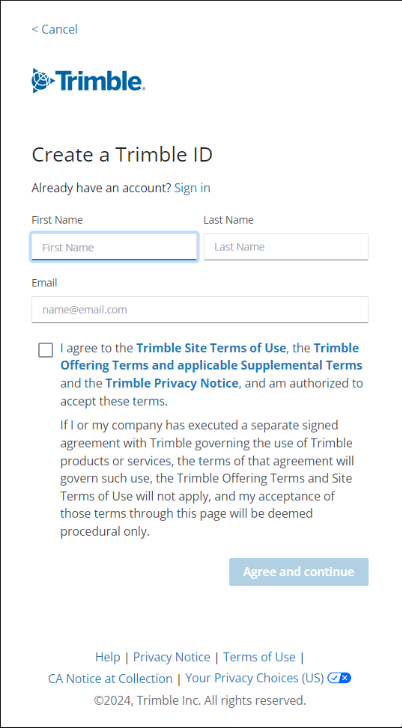
We must fill out this form with
- First Name
- Last Name
- Email Address
And we must accept the terms and conditions to continue.
Once this process is completed, a verification code will be sent to your email address.
You must enter it in the following window.
This will allow you to create a new password.
By clicking continue, the following will appear.
Here, you can click on sign in to continue with our process. It will take you to the initial form where you will be asked for your username and password to log in.
Step 3 - Activation of the Educational Plan
After logging in, Trimble will ask us to set up our profile.
Note
It is possible that we have not previously defined the country, so we will be asked to define the country before continuing.
This button will take us to our profile settings where we must fill out the following fields.
By clicking Save, we will have to return to the link to activate the license, which we leave here.
Before continuing to fill out the form that appears on this page, we must synchronize the data just added to our "Trimble Identity".
When we see that the warning message no longer appears, we can continue with the activation process by selecting an educational profile.
It is important to select that we are students and that our educational institution is Construsoft.
We proceed to save the data, which will take us to the place where we will activate our license.
When activating the license, confirmation will be requested in a pop-up window.
If the process has been successful, the message "License Activated" or the license status "In use" will appear.
Step 4 - Software Download
We can download the software in step 3 of the following website Tekla for Education Tekla Structural Design Suite | Trimble Downloads
Or at the following link Tekla Structural Design Suite Educational | Trimble Downloads
Here we can read the limitations of the educational license.
We move to the next tab, and we will be asked to log in if we are not already logged in.
TIP - If you encounter any error, you can log out completely and log in again.
Now the download link for the Tekla Structural Design Suite should appear.
Step 5 - Software Installation
You must run the downloaded file, and the installation wizard will appear.
Select the online license option and continue with the process.
When the process is finished, we will ask you to run Tekla Structural Designer.
Step 6 - First Launch
If the software runs, it should open a tab in your browser where you can log in.
If that tab does not open, the following window will appear.
You must click on Try to sign in again, so that the tab opens and allows you to log in. If it still does not open, you can cancel the sign-in and you will be taken to the next tab.
Here you must click on sign in, and this should open the browser tab that allows you to log in. If everything is set up correctly, your license will appear.
With this, you can close this tab and Tekla Structural Designer will open, and you will be ready to work.
If I encounter any problems?
Please contact the course instructor or the general questions forum on the campus, where you can contact the instructor.
I hope this guide has been helpful.
Comments
0 comments
Article is closed for comments.